


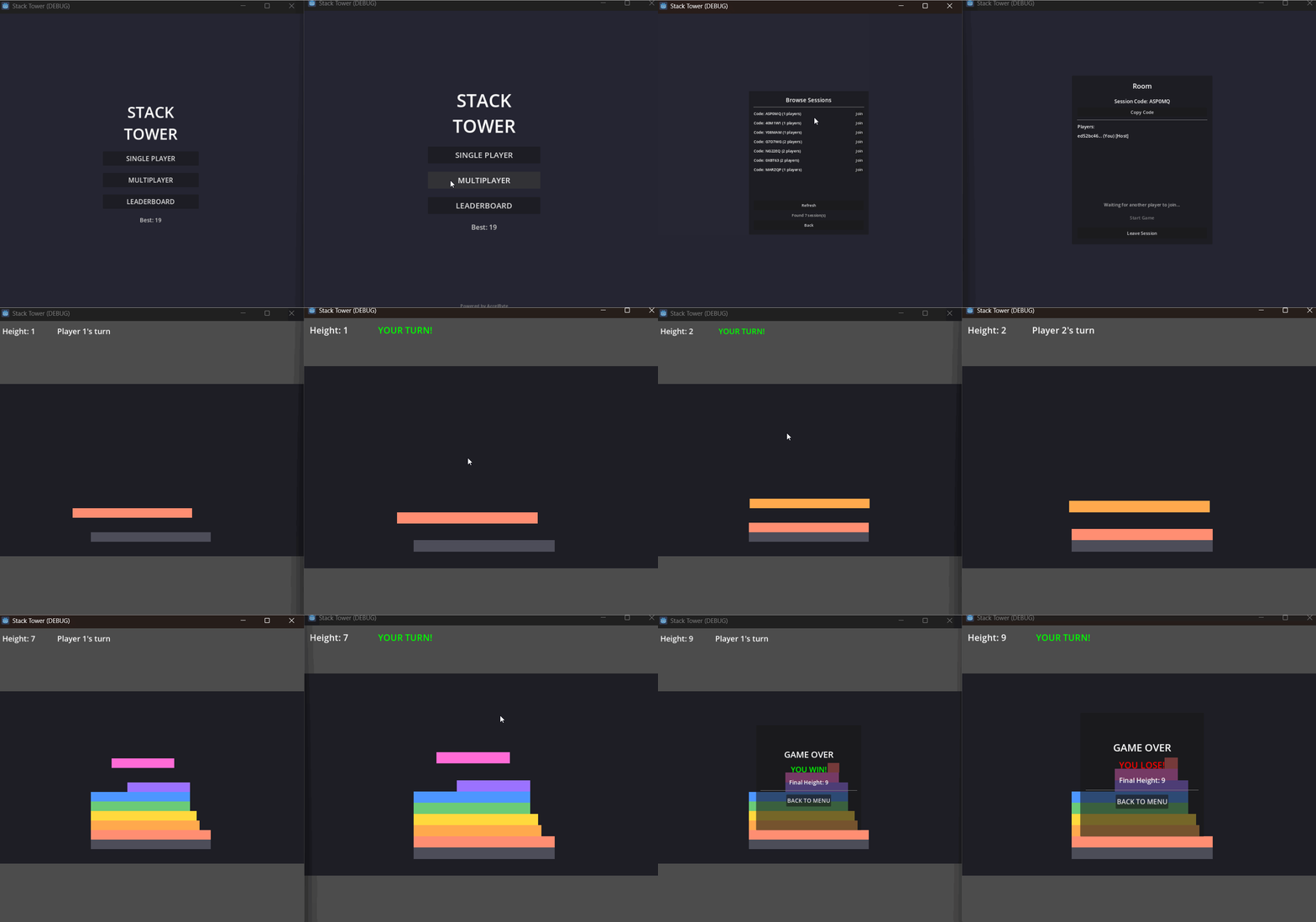
I built a small two-player game in Godot 4 called Stack Tower. One player drops a block, the other places the next one on top, and we keep taking turns. If you miss the stack, your block gets smaller. Miss enough, and you lose. Simple enough, but fun to challenge a friend.
I built it using a peer-to-peer (P2P) setup because I wanted to avoid paying for a dedicated game server for such a small game. It worked fine on my device and on several laptops connected to the same local network. So I invited a friend to play from his place.
That is where it stopped working. Both games ran fine, but we could not establish a connection. The problem was not the stacking code. The two players were behind different routers and firewalls, and the networking setup I had was not enough to establish a connection across the internet.
I wanted to keep the game P2P, so I tried the AccelByte Godot SDK. AccelByte Gaming Services (AGS) supports Godot 4 and provides the pieces I needed for player login, sessions, signaling, and STUN/TURN-based connectivity. The game still runs on a player machine; I did not need to deploy a dedicated game server.
This is how I connected the two clients, from device login to the first gameplay packet. I will focus on the connection flow and also share the things that caught me while debugging it.
How the Pieces Fit
Think of a room before a match. Players need to find the room, know who else joined, and then establish a path for game data. A session being created is not the same thing as having a working P2P connection.
-
Lobby provides the WebSocket connection used for notifications and the P2P signaling messages. The two players do not need to exchange addresses manually.
-
Session keeps track of the game room, its members, and its join code.
-
STUN and TURN help the clients establish connectivity across NAT and firewalls. When a direct route cannot be established, TURN can relay game traffic.
-
WebRTC carries the actual game data. Godot has
WebRTCPeerConnectionandWebRTCDataChannel, while AGS Lobby provides the signaling path needed to set them up.
The order matters: log in, connect to Lobby, initialize the P2P manager, wait for ICE configuration, and only then try to connect the players.
What You Need
-
Godot 4.5.x, which is the version I used for Stack Tower.
-
The AccelByte Godot SDK. It is currently marked as beta. Install it from Godot Asset Library, or copy
addons/accelbyte_sdk/from the GitHub repository into your project. -
An AGS game namespace and an IAM client for your game.
-
For desktop builds, the Godot WebRTC native extension. Web exports have WebRTC support built in; desktop builds need the appropriate plugin.
-
A Session V2 game session template in the AGS Admin Portal, with P2P selected as the server/session type.
SDK repository: github.com/AccelByte/accelbyte-godot-sdk
WebRTC desktop extension: Godot WebRTC GDExtension (Asset Library)
Add your environment settings to project.godot:
[accelbyte]
base_url="https://<your-environment>.accelbyte.io"
namespace="<your-namespace>"
client_id="<your-client-id>"
client_secret=""
I used a small session template because Stack Tower only has two players:
-
Min Players and Max Players: 2 and 2.
-
Joinability: Open, so players can browse or join through a code.
-
Server: Peer to Peer (P2P). This is the important setting.
-
Invite Timeout and Inactive Timeout: 60 seconds each in my configuration.
-
Custom Attributes: optional engine, game, and type tags. I did not use filtering for Stack Tower.
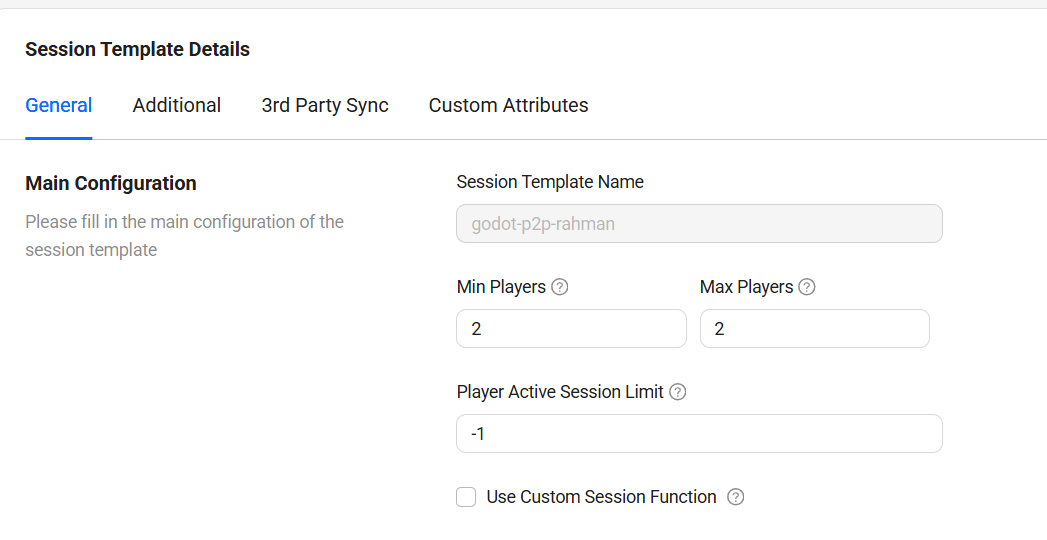
Session template: Stack Tower uses a two-player room.
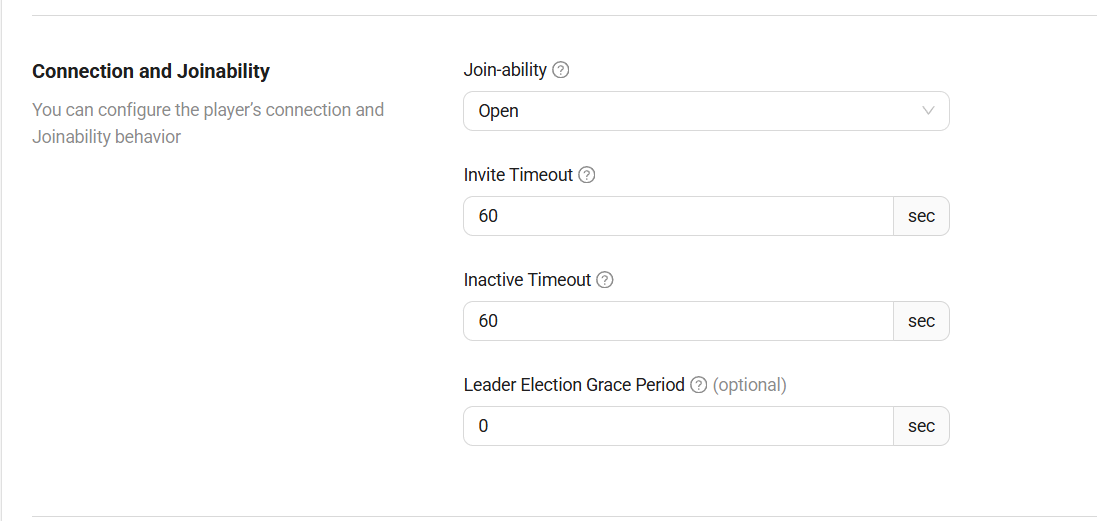
Session template: open joinability and the timeout settings used in the prototype.
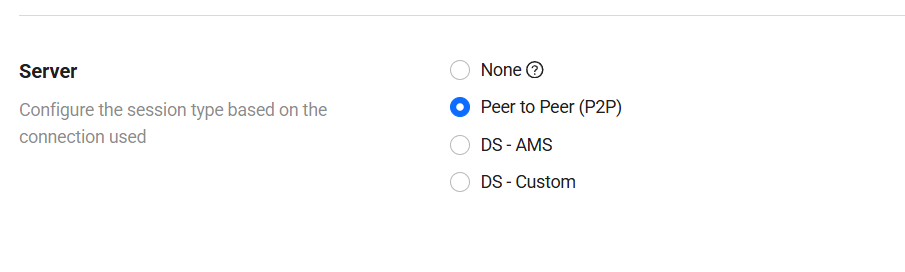
Session template: Peer to Peer (P2P) selected as the hosting type.
The template name is the value you pass as configurationName when creating the game session in Step 4. Also check the SDK repository license before using it in a shipped game.
Step 1: Log In Without a Login Screen
Stack Tower does not ask players to sign up. On launch, it uses device login to create or recover the player account. I put the setup in an autoload so the rest of the game can wait until the backend is ready.
The current public SDK example initializes an AccelByteSDKWrapper and configures its client credentials like this:
func _initialize_sdk() -> void:
    sdk = AccelByteSDKWrapper.new()
    sdk.initialize(self)
    sdk.set_base_url(ProjectSettings.get_setting("accelbyte/base_url", ""))
    sdk.set_client_credentials(
        ProjectSettings.get_setting("accelbyte/client_id", ""),
        ProjectSettings.get_setting("accelbyte/client_secret", "")
    )
    sdk.set_namespace(ProjectSettings.get_setting("accelbyte/namespace", ""))
    sdk.lobby_connected.connect(_on_sdk_lobby_connected)
I then log in through IAM:
func _login_with_device() -> void:
    var iam = sdk.get_service(IamService)
    var result = await iam.platform_token_grant_v4(
        "device", "", "", true, _device_id
    )
    if result.get("success", false):
        user_id = sdk.get_user_id()
        _connect_to_lobby()
The _device_id is a stable device identifier created elsewhere in my autoload. This is an excerpt, not the entire autoload script. Check the argument order of platform_token_grant_v4 against the SDK revision you install: the public SDK is still in beta, and this was one of the places where I found different examples using different signatures.
You will also see get_iam_service() in some older code. For these examples, use get_service(IamService).
Step 2: Connect to Lobby, Then Build the P2P Manager
Once login succeeds, connect to Lobby. Do this before initializing P2P because the handshake between the clients goes through the Lobby WebSocket.
func _connect_to_lobby() -> void:
    var err = sdk.lobby_connect()  # Empty string on success
    if err != "":
        lobby_error.emit(err)

func _on_sdk_lobby_connected(_data: Dictionary) -> void:
    var lobby_ws = sdk.get_service(LobbyWsService)
    _p2p_manager = AccelByteP2PManager.new()
    _p2p_manager.peer_connected.connect(_on_peer_connected)
    _p2p_manager.peer_disconnected.connect(_on_peer_disconnected)
    _p2p_manager.data_received.connect(_on_peer_data_received)
    _p2p_manager.ice_servers_configured.connect(_on_ice_servers_configured)
    _p2p_manager.initialize(sdk, lobby_ws, get_tree().get_root())
Two details caught me here. First, connect the signals before initialize(). In some failure paths, ice_servers_configured can fire while initialization is happening. If you add the listener afterward, you can miss it.
Second, the WebRTC native extension is easy to forget. Godot can expose the WebRTCPeerConnection class even when the desktop implementation is not available. The SDK tries to initialize a real connection object, so the debugger is where you will see the more useful error when the native extension is missing.
Step 3: Wait for the ICE Servers
During initialize(), the P2P manager asks AGS Turn Manager for TURN server addresses and temporary credentials. It then configures the ICE servers for the connection attempts. This happens asynchronously, initialize() does not wait for the credentials to arrive.
If you call connect_to_peer() too early, you can get ERR_UNCONFIGURED. I wait for the ice_servers_configured(server_count) signal before enabling the Create and Browse buttons in Stack Tower.
A zero count means there is no configured relay server available at that point. Direct connections may still work on some networks, but you should not assume every player will be able to connect. In my prototype, the Lobby screen shows “Connecting to AccelByte…” until initialization completes.
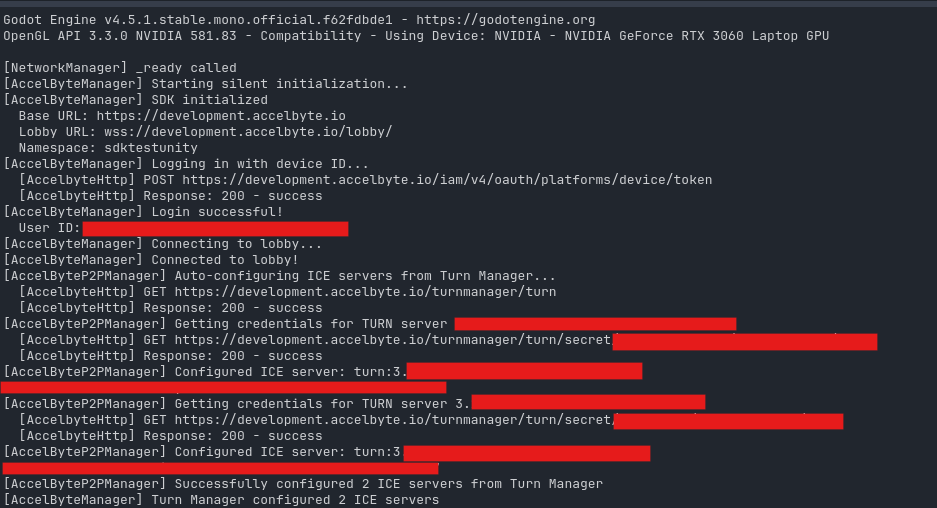
Debugger output showing the Lobby connection and ICE/TURN configuration.
Step 4: Make a Room
The host creates a game session from the P2P template. AGS returns the session ID, a join code, and the leader ID:
var session_service = sdk.get_service(SessionService)
var body = {
    "configurationName": "your-p2p-template-name",
    "joinability": "OPEN"
}
var result = await session_service.create_game_session(
    ab_namespace, false, body
)
if result.success:
    var data = result.data
    _current_session_id = data.id
    _current_session_code = data.code
    _leader_id = data.leaderId
Other players can browse public sessions or join a specific room using its code:
# Browse open sessions
var result = await session_service.public_query_game_sessions_by_attributes(
    ab_namespace, {}
)

# Or join by code
var result = await session_service.public_session_join_code(
    ab_namespace, {"code": code}
)
The ab_namespace value comes from my game configuration. Lobby also notifies clients when the session member list changes. Listen for message_session_notif and check the OnSessionMembersChanged topic. Depending on the payload, the message may need JSON parsing directly or base64 decoding before parsing.
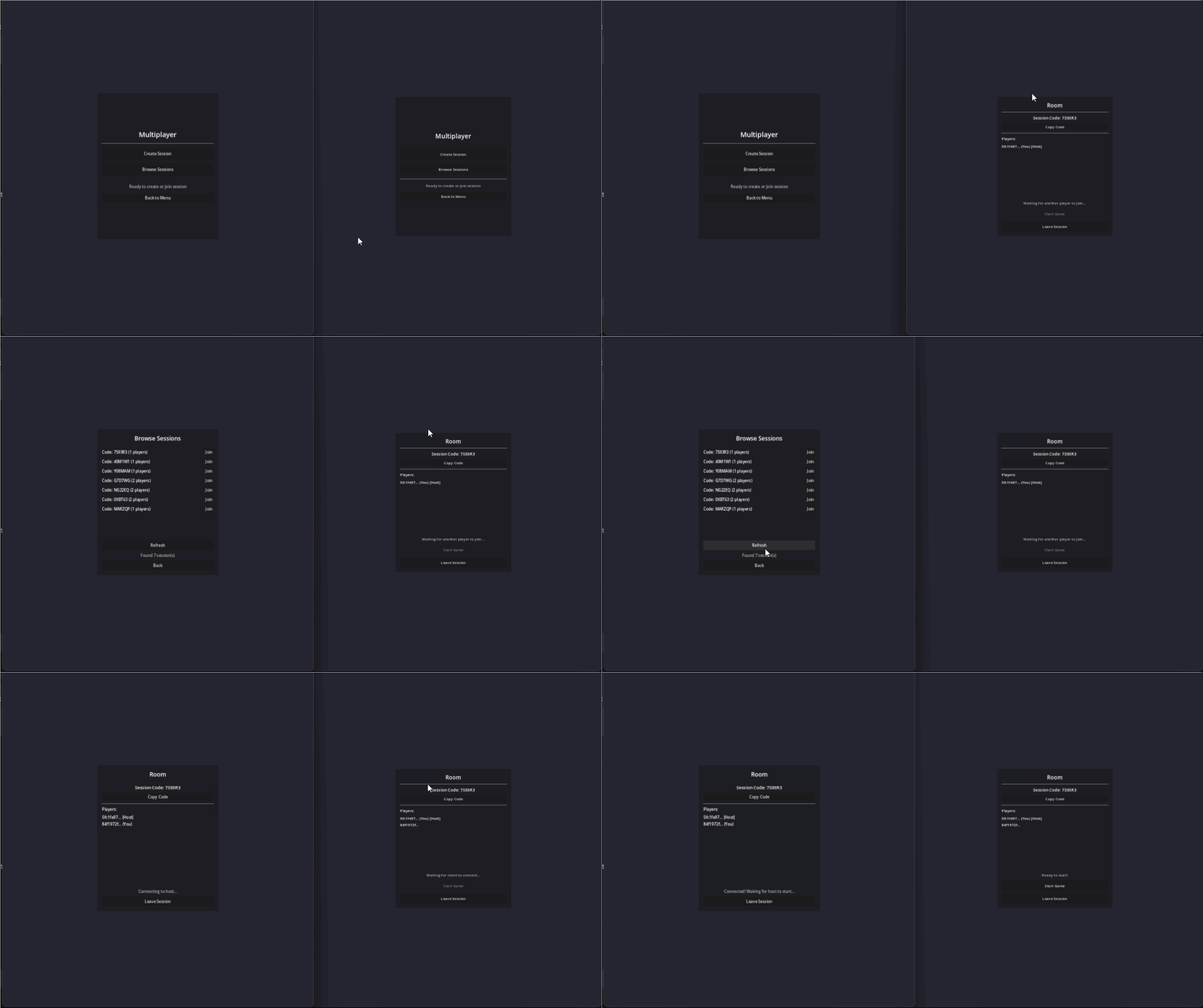
Stack Tower multiplayer flow: browsing, joining, and reaching the room.
Important: joining a game session does not mean the players can send gameplay packets to each other. It only confirms that AGS knows who belongs in the session. I do not start the match until the P2P connection is established.
Step 5: Call the Other Player
Someone has to initiate the connection. In Stack Tower, I let the joining player do it. When the joiner sees that both players are in the room, they call the host using the host’s AGS user ID:
_p2p_manager.connect_to_peer(host_user_id)The SDK handles a handshake over Lobby. The useful message sequence to recognize in your debugger is:
-
CheckRequest: the joining player asks if the host is there. -
CheckResponse: the host answers that it is available. -
Offer: the joiner describes its connection parameters and starts opening a data channel. -
Answer: the host sends its response. -
Candidate: both clients exchange network candidates, possibly including relayed paths. -
GatheringDone: one side has finished gathering candidates.
WebRTC tests the available candidates and opens the data channel on a working path. The P2P manager then emits peer_connected(user_id). For me, that signal is the real “ready” state—not merely being in the AGS session.
There is also a timeout on the host check. If the other player never responds, I handle peer_disconnected and show the error instead of waiting forever. I am spelling out these messages because when something fails, the names in the debug logs help you see where the process stopped.
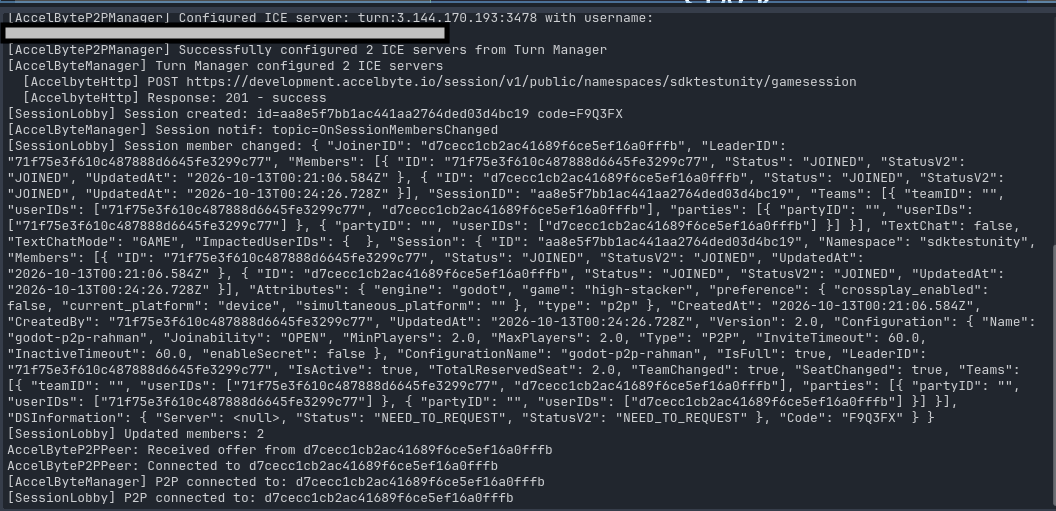
P2P debugging output after signaling and the connection attempt.
Step 6: Send Game Data
Once peer_connected fires, I can send bytes through the WebRTC data channel. Stack Tower sends small JSON messages for the player actions:
func send_game_action(action_type: String, data: Dictionary = {}) -> void:
    var msg = data.duplicate()
    msg["type"] = action_type
    msg["sender_id"] = own_id
    _p2p_manager.send_string_to_peer(peer_user_id, JSON.stringify(msg))
On the receiving side, I decode the packet and pass the dictionary to the game:
func _on_peer_data_received(peer_id: String, data: PackedByteArray) -> void:
    if peer_id != peer_user_id:
        return
    var parsed = JSON.parse_string(data.get_string_from_utf8())
    if parsed is Dictionary:
        _handle_game_message(parsed)
I use an ordered, reliable data channel for this turn-based game. That is useful for events like drop_block, where an out-of-order or missing move could leave the clients showing different stacks. Reliable transport does not mean packets can never be lost during a disconnect, so the game still needs to handle connection failures.
Stack Tower sends two main messages: drop_block, containing the position and width, and game_over. Both clients apply the same stacking logic to the same input instead of sending the entire stack after every turn. That keeps the messages small. The tradeoff is that the clients must compute the same result; physics and floating-point differences could become a problem in a more complicated game. Mine mostly uses rectangle overlaps, so it is manageable.
Step 7: Clean Up
When a player leaves, I disconnect the peer and leave the game session:
_p2p_manager.disconnect_peer(peer_user_id)
await session_service.leave_game_session(ab_namespace, _current_session_id)
If Lobby disconnects, I call cleanup() on the P2P manager and initialize a new one after reconnecting. Otherwise the old manager can still hold listeners tied to a dead WebSocket.
Things that Caught Me
Most of the time I spent debugging was around the steps between joining a session and actually getting a working data channel. A few things are worth checking early:
-
Install the desktop WebRTC extension. The class name existing in Godot does not prove that the native implementation works.
-
Do not treat a successful session join as a connected peer. Wait for
peer_connected. -
Wait for the ICE configuration callback. A fast click can try to connect before the TURN credentials arrive.
-
Pin the Godot SDK version. The public README, examples, and method signatures can differ as the beta SDK changes. I also had a few local modifications while building Stack Tower, so check your SDK revision before copying the snippets.
-
Keep the networking controller and gameplay code separate. It helped me understand whether a failure was authentication, signaling, connectivity, or game logic.
When I Would Not Use P2P
I like P2P for a small game like Stack Tower, but it has tradeoffs. The host’s machine and connection affect the whole match. If a host quits, the match can end unless you build host migration. And a host-controlled game is easier to cheat in than a server-authoritative one.
For a two-player stacking game, I can accept those tradeoffs. For a competitive shooter or a game that needs strict server authority, I would use dedicated servers instead. AGS Multiplayer Servers (AMS) is an option for that.
TURN relay also adds a network hop. It is useful when a direct P2P path cannot be established, but it can increase latency. That is not a big issue for taking turns dropping blocks. It matters much more for a latency-sensitive action game.
From a Local Game to Two Connected Players
The main lesson for me was that a multiplayer session and a multiplayer connection are two different things. AGS Session helps players find and join the same room. Lobby, the P2P manager, ICE, and WebRTC handle the work needed to establish a path for the actual game packets.
With those pieces connected, Stack Tower could keep its player-hosted setup and let two players on different networks play together. I did not have to build my own signaling server or deploy a dedicated game server just for this prototype.
If you are building something similar in Godot 4, I would start with the SDK’s P2P example, confirm a connection between two clients, and only then add your own game actions.
Useful references: AccelByte Godot SDK · P2P code example · AGS P2P documentation
Try P2P multiplayer in your Godot project
The AccelByte Godot SDK connects your project to AGS authentication, sessions, and multiplayer services. Start building on Public Cloud for free during development, up to 30 concurrent users.
You're almost signed up!
Verify your account by following the instructions sent to .
If you still haven't received an email, please check your spam folder.
Featured Blog Posts

Bring your first player online today.
Get started for free, and scale as your game grows.