


A match drops in the middle of a round. AccelByte Multiplayer Servers (AMS) replaces the server, the next players get matched, and the fleet history says only "Crashed" with exit code 139. That row is the whole record of what went wrong.
That changes with Server Crashes in AMS.
Server Crashes is now in Beta in the AGS Admin Portal for AMS on AGS Public Cloud and Private Cloud. AMS turns each crash into a call stack and groups crashes that share one, with no SDK and no third-party crash reporter.
Why Server Crashes Go Uninvestigated
Say a server segfaults at 21:40 on Saturday of a weekend playtest and a few more go down by Sunday night. On Monday, someone has to pull a multi-gigabyte core dump onto a Linux machine, find the exact build that produced it and its debug files, and open a debugger. Then do it again for the next one, because a list of exit code 139 rows doesn't tell you whether you have one bug or several. Often nobody has the time and by then the next build is out with the same crash in it.
Nothing connects those pieces. The fleet history recorded that a server exited and not where it failed, so every investigation starts from scratch.
How Server Crashes Works
We built Server Crashes in AMS to do the first part of that investigation for you. Here's what happens when a server crashes:
-
A dedicated server exits with a non-zero exit code, or is terminated by a signal such as SIGSEGV. AMS records it as a crash event.
-
If the fleet collects core dumps, AMS uploads the core dump and the server log from the VM, usually within one to three minutes.
-
AMS turns the core dump into a call stack, using the debug symbols uploaded with the server image.
-
The event joins the crash with the same call stack, or starts a new one.
Exits that AMS starts itself, such as session timeouts or removing an unresponsive server, aren't counted as crashes.
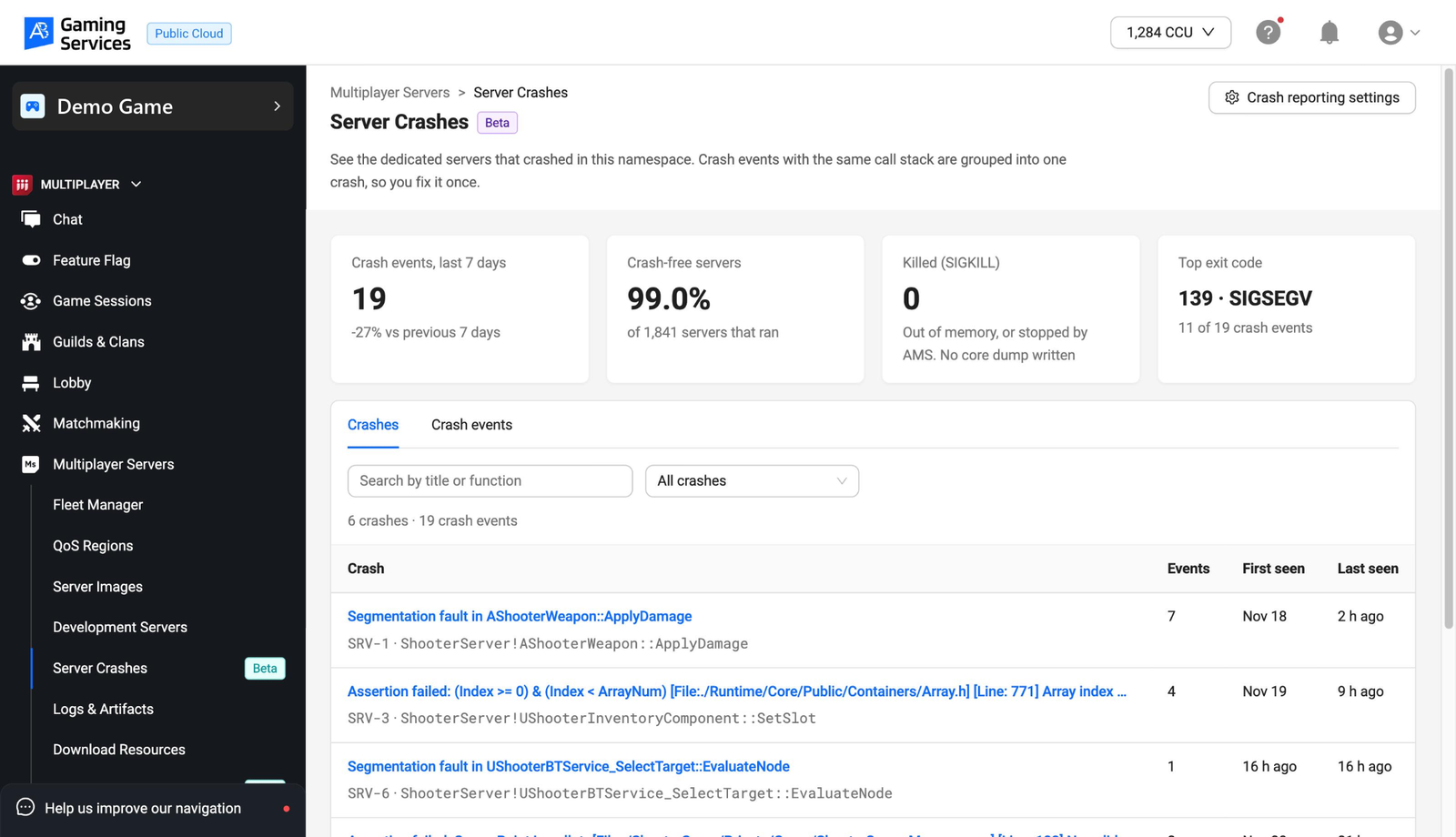
An exit code tells you a server crashed. A call stack tells you which line.
What You Get
-
Every crashed server in one list:
each crash event shows the exit code, fleet, region, image and session, across all your fleets. -
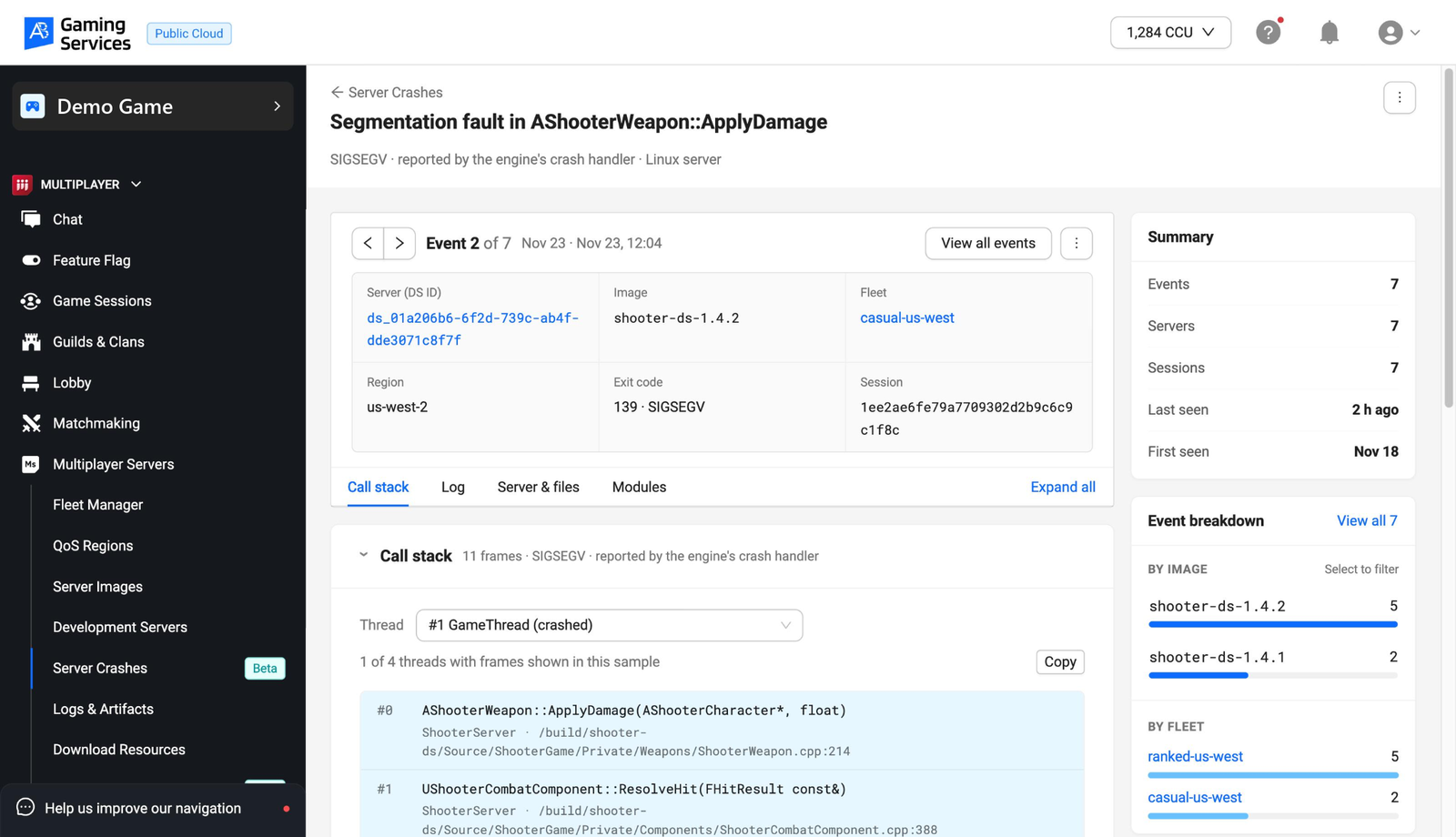
Call stacks for every thread:
function names and line numbers for each frame, from the symbols you uploaded. -
One call stack, one row:
events with the same call stack are grouped into a single crash, so you can fix the ones that hit the most servers first. -
Fleet health at a glance:
crash events over the last seven days, the crash-free server rate, servers killed with SIGKILL (usually out of memory), and the most frequent exit code.
Open a crash to see how many servers and sessions it hit, and which image it came from. Each event has the call stack for every thread, with function names and line numbers:
It also has the last log lines before the crash, and the core dump and logs to download if you still need a debugger.
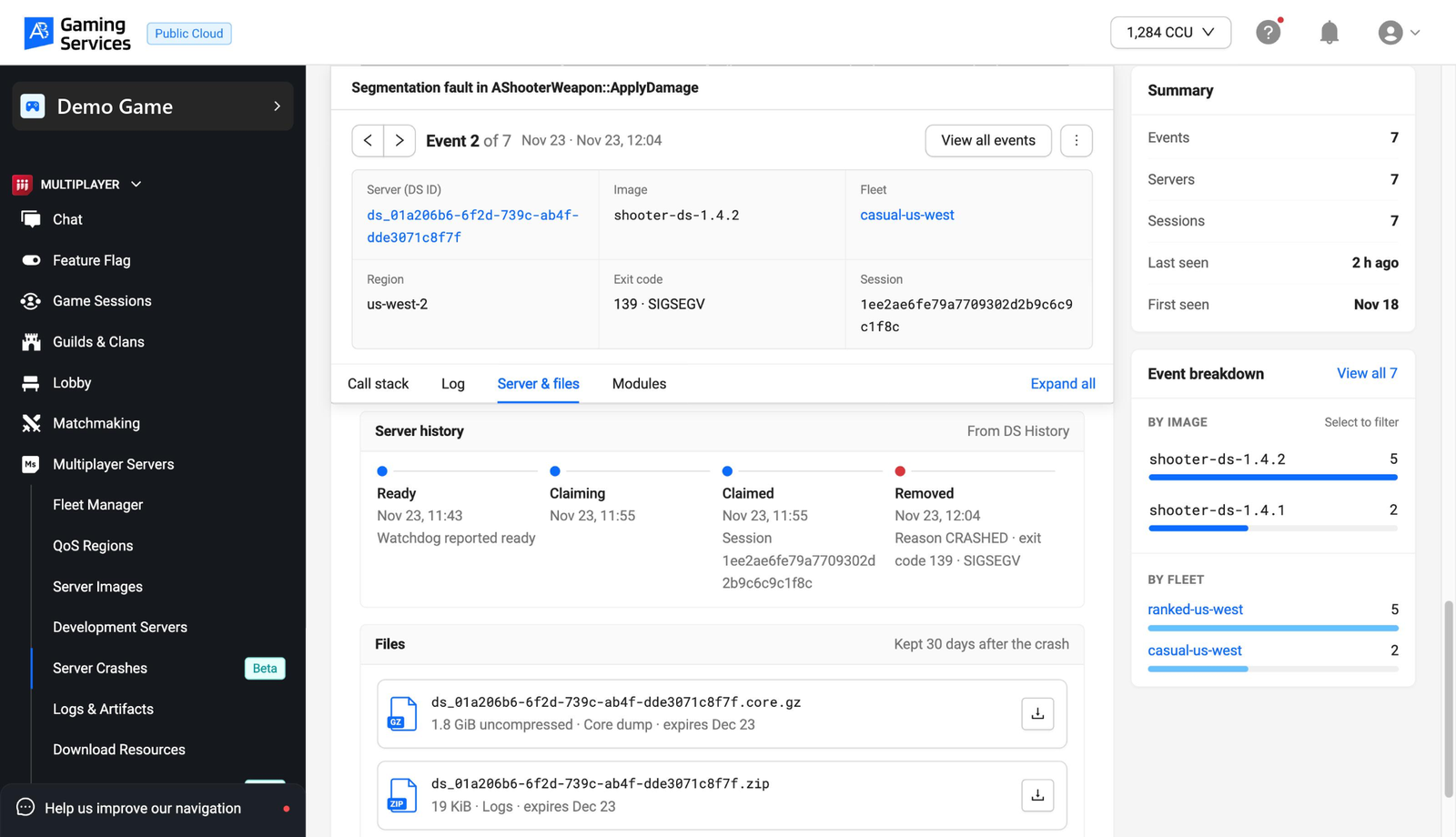
Our Server Crashes in AMS setup guide walks through the rest of the page.
Before You Turn It On
Crash events are recorded for every fleet from the start. Call stacks and grouping need three things, and until they're in place, the page shows a Set up crash reporting checklist. The three steps, plus one caution:
-
Let your server write core dumps.
Don't set the core file size limit to 0 (for example, ulimit -c 0) in your image or launch script, and make sure your server exits with a non-zero code on a fatal error. Most servers need no code change for this. -
Upload your server image with debug symbols.
Add--symbol-filesto your upload command:ags ams upload --path <server_folder> --executable <exec_command> --image-name <image_name> --symbol-files
Add--dry-runfirst to check which symbol files will be included. Symbols can't be added to an image after upload, so include them every time. -
Collect core dumps for your fleets.
Fleets created in the Admin Portal do this by default. For other fleets, set the collection rate in Admin Portal → Multiplayer Servers → Server Crashes → Crash reporting settings, per fleet or for all fleets at once. -
Treat core dumps as production data.
A core dump holds whatever was in the server's memory when it crashed, so limit who downloads them. Core dumps and logs are kept for 30 days, then deleted.
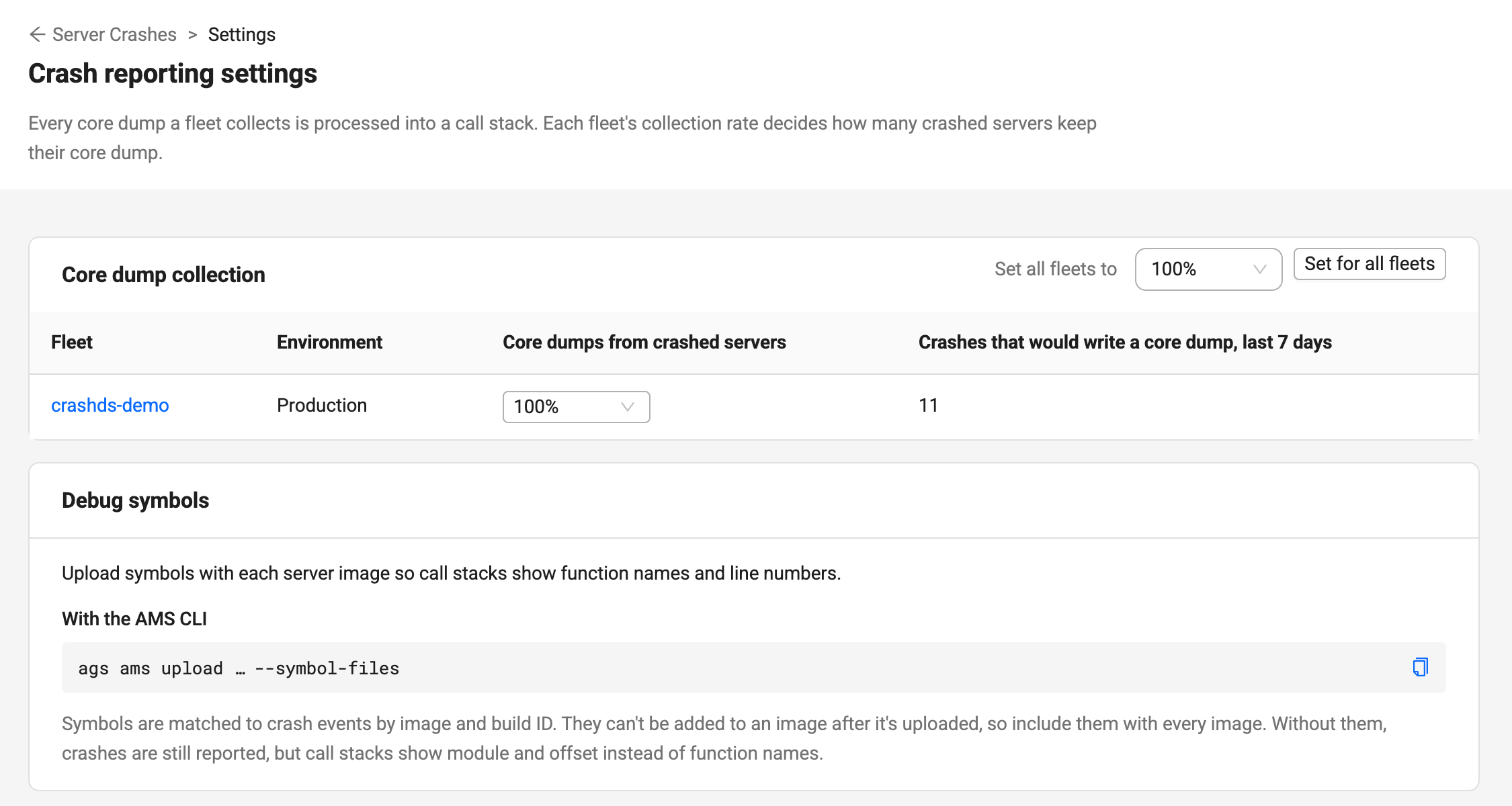
Call stacks are generated for x86-64 Linux servers only; ARM64 fleets still record crash events, core dumps and logs. A server killed for running out of memory leaves no core dump, so you'll see the event but not the stack. And crashes a fleet samples out are counted, not processed.
When an event has no readable call stack, its Result says why, such as Missing symbols, Skipped by sampling or No core dump. Before, every crash you wanted to understand cost an engineer an afternoon. Once the checklist is done, most of them cost a click.
Availability
Available in Beta on AGS Public Cloud and Private Cloud. Features and limits may change during the Beta. Read the release notes.
Try It, Then Tell Us
If you run AMS, open Admin Portal → Multiplayer Servers → Server Crashes, work through the checklist and the setup guide and tell us what you find on Discord.
Debugging client crashes too? See how the ADT AI Assistant takes a crash report to a fix.
See Which Line Crashed Your Server
Server Crashes in AMS turns dedicated server crashes into grouped call stacks, with no SDK to add. It's in Beta now. New to AGS? Start on Public Cloud, or talk to us about Private Cloud.
You're almost signed up!
Verify your account by following the instructions sent to .
If you still haven't received an email, please check your spam folder.
Featured Blog Posts






Bring your first player online today.
Get started for free, and scale as your game grows.