


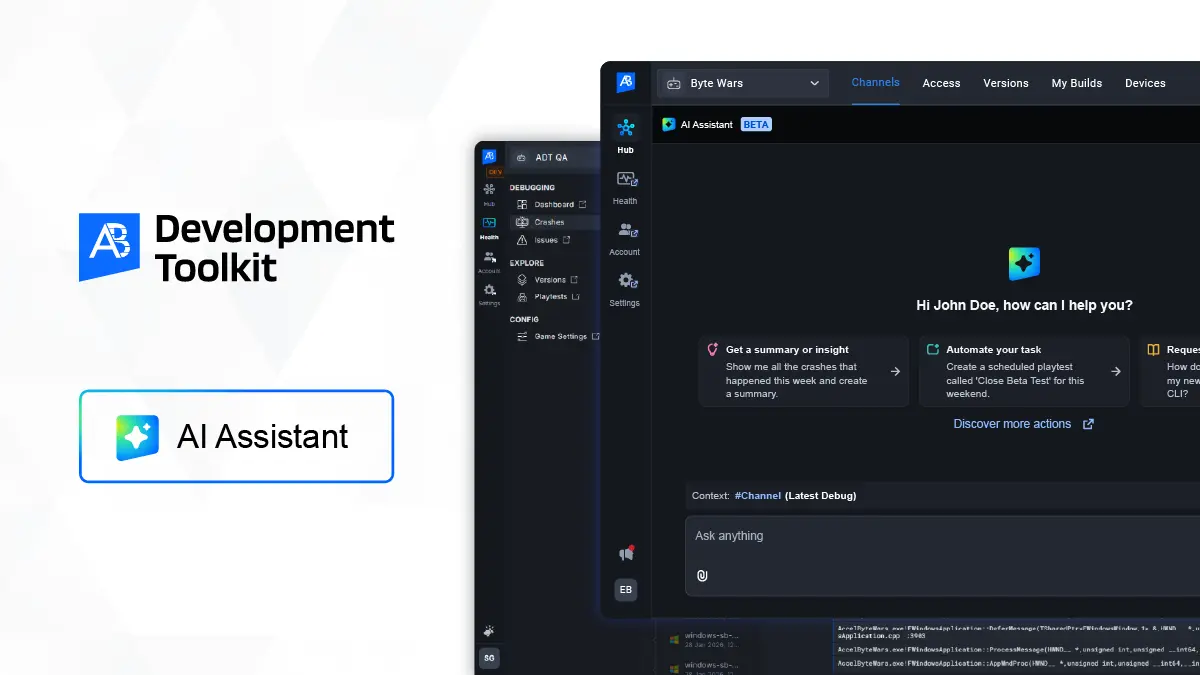
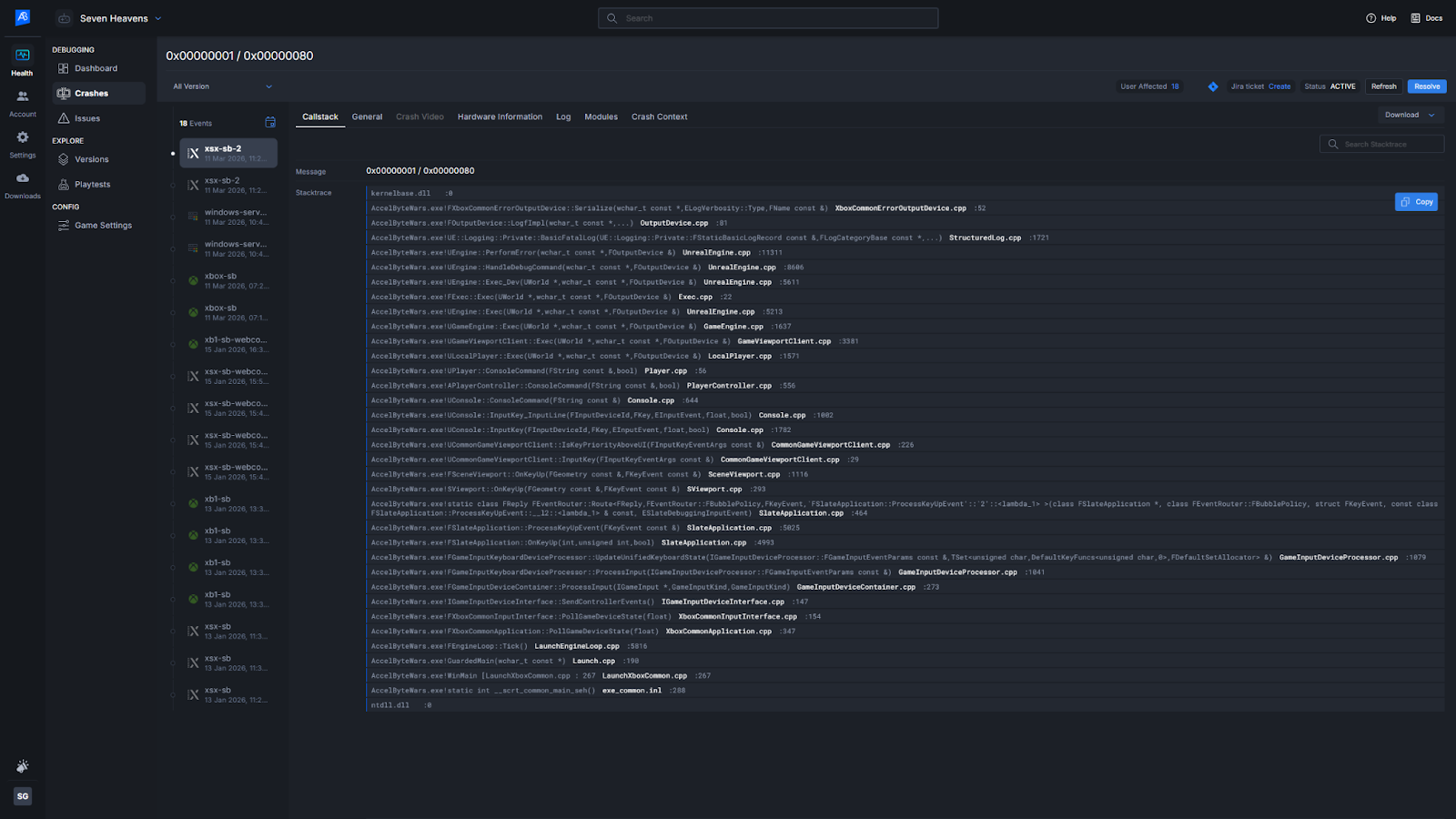
AccelByte Development Toolkit (ADT) is AccelByte's desktop app for build distribution, crash reporting, and playtesting. When a crash event comes in, it captures the full symbolicated call stack, engine version, platform, build metadata, session logs, and a 10-second pre-crash video.
Then the developer begins the investigation:
- Which build produced this crash?
- Has the same crash happened before?
- Is it platform-specific?
- Did it start appearing after a recent change?
None of this work is particularly difficult. It is just repetitive, manual, and slow.
So we built an AI Assistant that sits on top of the crash context that is already captured to help you debug significantly faster than doing it manually without any copy-pasting, context feeding, or switching tabs.
In this article, we walk through what happens when you press Analyze, how it reasons through crash data, detects patterns across builds, and how it can extend all the way to a proposed source-level fix.
What happens when you press Analyze?
When you press Analyze on a crash event inside ADT, the assistant starts from the same place a developer normally would: the crash record itself. Each crash event already contains structured signals: exception message, symbolicated callstack, engine version, platform information, metadata, session logs and runtime context. The assistant reads all of this context together and performs the first pass of investigation to understand the crash before fixing it:
- Interprets the call stack to identify frames most likely related to game code.
- Expands the context using metadata such as platform, build version, and runtime information.
- Checks crash history to see whether similar crashes appeared in other builds or sessions.
This mirrors the way developers normally investigate crashes, but automates several minutes of manual inspection. It then gives a structured response that typically includes:
- a likely root cause hypothesis
- the reasoning behind that conclusion
- references to similar crashes in other builds
- a suggested debugging direction or potential fix
Here is how this looks like in a real example when a developer navigated to the inventory screen in Byte Wars, an UE game built on AccelByte, and clicked Custom Ship. The game crashed instantly. The crash report landed in ADT Hub seconds later, and the developer asked the AI assistant to investigate.
For a single crash, this saves a few minutes of context gathering. For teams processing large crash queues across multiple builds, it removes a significant amount of repetitive triage work.
Detecting crash patterns across builds
Once the assistant has analyzed the crash event itself, it compares the crash against historical crash data collected by ADT. This comparison is based on callstack frame signatures, so the assistant can identify crashes that originate from the same code path even if the surrounding context changes.
This allows it to answer questions developers usually investigate manually:
- Has this crash appeared in previous builds?
- Did it start appearing after a specific release?
- Is it happening on one platform or several?
- Is the crash frequency increasing?
For example, if the same callstack signature appears across multiple builds, the assistant can flag it as a recurring issue. If the crash first appears in a specific version, it can indicate a likely regression.
In practice, this helps answer one of the most important debugging questions much faster: Is this an isolated crash, or the symptom of a broader issue?
Going deeper: source-level analysis with MCP
For teams that connect their source repository, the investigation can extend beyond crash analysis into the source tree. This is enabled through MCP (Model Context Protocol) integrations that allow the assistant to interact with local development tools through defined interfaces. Two MCP servers power this workflow:
- a filesystem server, which allows the assistant to read and edit files in the local source directory
- a git server, which allows it to stage and commit changes locally
Both run on the developer’s machine. ADT does not host them and doesn’t require custom integration.
Setting up the MCP itself is straightforward. Inside the ADT Hub, go to Settings > AI Assistant > Add MCP Server. Give it a name, set transport to STDIO, set the command to node, and add your source directory path as an argument. Save. That is it. Here’s an example:
Once connected, the assistant can extend its investigation in several steps:
- First, it identifies the file and line number in the callstack most likely responsible for the crash.
- Next, the filesystem server retrieves the relevant source file to inspect the surrounding logic.
- From there, the assistant traces how the code reached a failing state and suggests a possible fix.
If the fix is simple (for example: adding a missing null check or guard condition) the assistant can apply the change directly and stage it as a local commit and never leaves the developer’s machine automatically so the developer can fully review it before deciding whether to push it upstream.
Where this workflow helps the most
The assistant is most useful when there is enough crash data to reason about.For a single isolated crash, the traditional debugging process may already be fast enough. The benefits are significant when teams are processing many crashes across many builds which looks like:
- Active pre-launch with daily or near-daily builds and a crash queue to work through
- Live ops with weekly patches where recurring crashes need to be distinguished from new regressions
- Multi-platform or multi-variant releases where spotting patterns across the dataset matters as much as individual event details
Even in those situations the assistant does not replace debugging entirely. It removes much of the repetitive work required to go from crash diagnosis to source-level fix.
What it does not do
While it’s a very useful capability, there are some clear limits:
- It cannot fix crashes that depend on runtime state.
If the root cause is a race condition, a corrupted memory state, or game-specific logic that only manifests in a particular sequence of player actions, the assistant cannot infer that from source files alone. It will flag the lower confidence in the response and leave the investigation to the developer.
- Without symbolicated frames, precision drops.
Stripped or obfuscated stacks produce less precise root cause analysis. The assistant will tell you this in the response, but if you are not uploading PDB files, you are working with a reduced signal.
- It is in alpha.
Access is enabled per namespace on request. There is no SLA on response time or availability at this stage. It is stable enough for regular use during active development, but treat this period as a test and report what breaks.
Here’s how we are taking the use AI further in ADT
Crash analysis is the first step. The same approach can be applied to other types of runtime signals collected during development. We are currently exploring:
- Frame rate drop analysis
- ADT's upcoming Frame rate Drop Reporter records performance events when frame rates fall below a configurable threshold, along with the surrounding runtime context.
- Unlike crashes, performance issues rarely have a single failure point. They tend to emerge from patterns across builds, environments, or gameplay scenarios. Analyzing those patterns is a natural extension of the same system used for crash analysis.
- Regression investigation across builds
By linking builds to commit or change list metadata, the assistant can help narrow down which changes may have introduced a crash without needing to manually bisect the problem.
Test the AI Assistant on Crashes You Already Have
Skip the sales pitch and point ADT at your crash queue directly. The 30-day free trial is enough time to see if root cause analysis and MCP-based source fixes hold up on your codebase. If you're already on ADT and want a walkthough of the setup, let's talk.
Featured Blog Posts





Bring your first player online today.
Get started for free, and scale as your game grows.